Where is this actually used? Ask ZHERO
Cmd or Ctrl plus J from any page of your Zscaler console. Type a name, get every entity that matches grouped by type, each with how many policies use it.
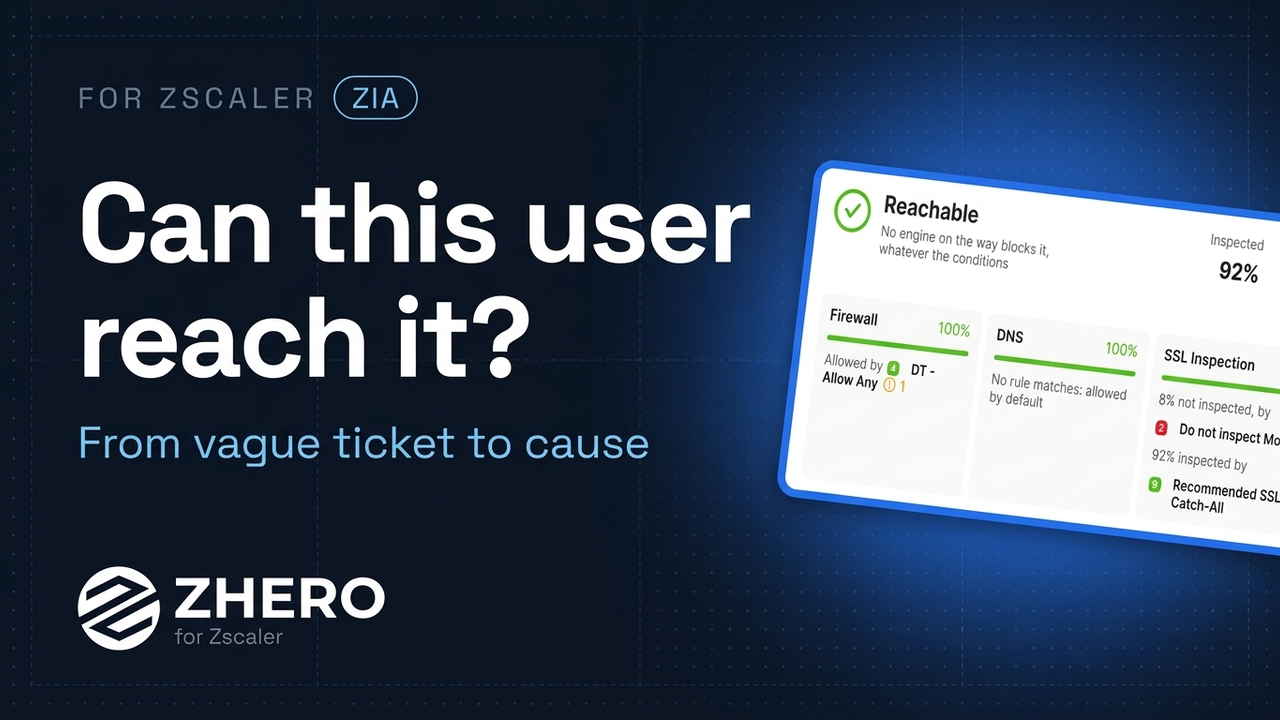
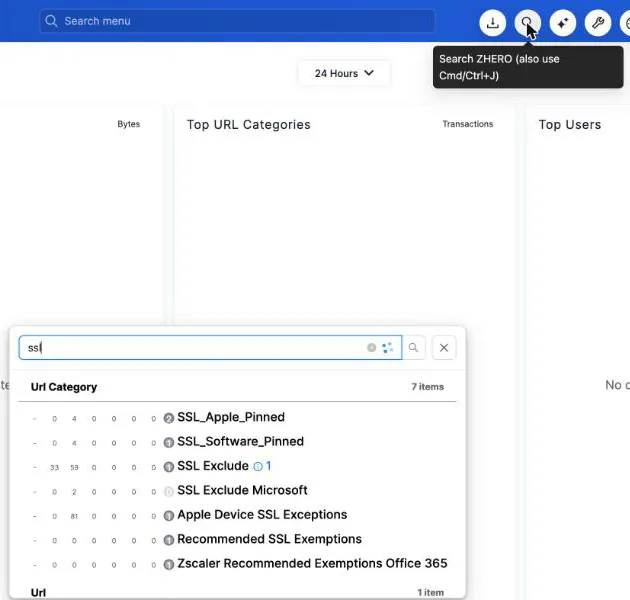
Press Cmd or Ctrl plus J from any page of your Zscaler console and type a name. Every URL category, cloud app, rule, location, group or application segment that matches comes back grouped by entity type, each one carrying how many policies use it. Click one and it opens in place, with the rules that use it listed and clickable. The question “where is this actually used” stops being a project.
The question that turns into Friday#
It sounds like a ten second question. Somebody wants to retire a URL category, or clean up a location that belongs to an office that closed, or work out whether a rule nobody remembers writing is load bearing.
In a tenant with four years of history, here is what actually happens. You open the policy that comes to mind. Then the one next to it, because the object might be in there too. Then you remember groups exist, so it could be reached indirectly. Then you check the other product. Forty minutes later you have seven tabs and a working theory, which is not the same as an answer.
So you say you will check properly on Friday. Friday has its own list.
The cost of that is not the forty minutes. It is the decisions that get made without the answer: the category nobody dares delete, the rule that stays because removing it feels risky, the cleanup that is scheduled every quarter and performed in none of them.
One shortcut, from anywhere#
Universal search opens with Cmd/Ctrl+J anywhere in the console, including on log pages, or from the magnifier in the ZHERO button row. The panel is a draggable window, so it does not take the page away from you.
Three things about it are worth knowing before you use it.
Type at least three characters and results appear as you type. There is no search button to press and no page to load.
Select first, then press. Highlight a string on the page, hit Cmd/Ctrl+J, and ZHERO searches for the selection straight away. This is the fastest way to resolve an object name or a URL that somebody pasted into a ticket.
Stay on the keyboard. Results are navigable with the arrow keys, and Enter jumps to the entity.
Grouped by type, counted by usage#
Results are not a flat list. They arrive grouped by entity type: URL categories together, source and destination IP groups together, rules, locations, user groups, application segments, each group with its own count.
That matters more than it sounds, because in a real tenant the same string names several different things. A word like “test” turns up as a URL category, as an IP group, as a rule name and as a segment, and those are four different conversations. Grouping keeps them apart instead of asking you to read a mixed list.
Then each result carries the usage counter: how many policies use this entity. So the first question, the one that decides whether the object is even interesting, is answered in the result list before you open anything.
Then the drawer, then one level deeper#
Pick a result and the drawer opens the entity in place: its configuration, the findings on it, and the Policies tab listing every rule that uses it.
The policy list distinguishes how each usage happens, which is usually the part that decides the answer. D means the entity is named directly in the policy criteria. G means it arrives through a group the policy names. A means it is covered indirectly by an Any criterion. An object that looks unused under a direct search can be very much in use through a group, and that distinction is the difference between a safe deletion and an outage.
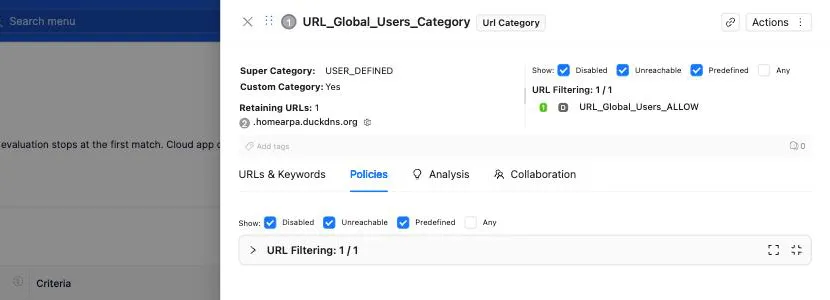
From the Policies tab, a rule is itself clickable, and inside that rule every referenced entity is an entity again. You keep going one level at a time until the question runs out instead of you.
On the ZPA side the drill-down inherits something useful: criteria are a boolean expression, and ZHERO draws the expression as nested brackets rather than listing it. Conditions joined by AND in one bracket, operands joined by OR inside, negated conditions drawn in red so an exclusion never reads as an inclusion. Every operand that is a real object behaves like any other entity, so a condition is a starting point rather than a dead string.
Why it is a lookup and not an investigation#
The reason this works is not the search box. Search boxes are easy.
It works because the relationships in your tenant have already been resolved. ZHERO reads the configuration through your own authenticated session and builds the map of what references what: which rules name this category, which groups contain this object, which policies are reached through those groups. The entities table is the same map in list form, browsable by type.
Once that map exists, “where is this used” is a lookup. Without it, it is an investigation, and investigations get postponed.
This is the same reasoning behind the mental list every Zscaler admin carries: the work that never gets done is rarely the work nobody wants to do. It is the work whose first step is too expensive. Change the cost of the first step and the list gets shorter on its own.
Universal search sits alongside the rest of Enhanced Visibility, and the same resolved map is what makes investigation and diagnostics possible on top of it.
Bring your own tenant to a demo and pick the entity you have been avoiding. We will look it up together, and you will know by the end of the hour.
Frequently asked questions
How do I open universal search in ZHERO?
Press Cmd/Ctrl+J anywhere in the Zscaler console, including on log pages, or use the magnifier in the ZHERO button row. The panel opens as a draggable window. Type at least three characters and results appear as you type.
Can I search for something I copied from a ticket?
Yes, and it is the fastest path. Select the text on the page first, then press Cmd/Ctrl+J: ZHERO searches for the selection immediately, so a URL or an object name pasted into a ticket goes from clipboard to answer without a single click.
What does the number next to each result mean?
It is the usage counter for that entity: how many policies use it. It means the question 'is this used at all' is answered in the result list, before you open anything. Opening the entity shows which policies, and whether each one names it directly, reaches it through a group, or covers it with an Any criterion.
Does search cover both Internet Access and Private Access?
Yes. Results span entity types across both, and on Experience Center tenants, where users and user groups are shared between planes, an entity shows its ZIA policies and its ZPA policies together, with links to jump between them.
Can I search for a user or an email address?
Universal search is for configuration entities: URL categories, cloud apps, rules, locations, groups, application segments and the rest. It answers questions about how the tenant is configured, not about who did what.